
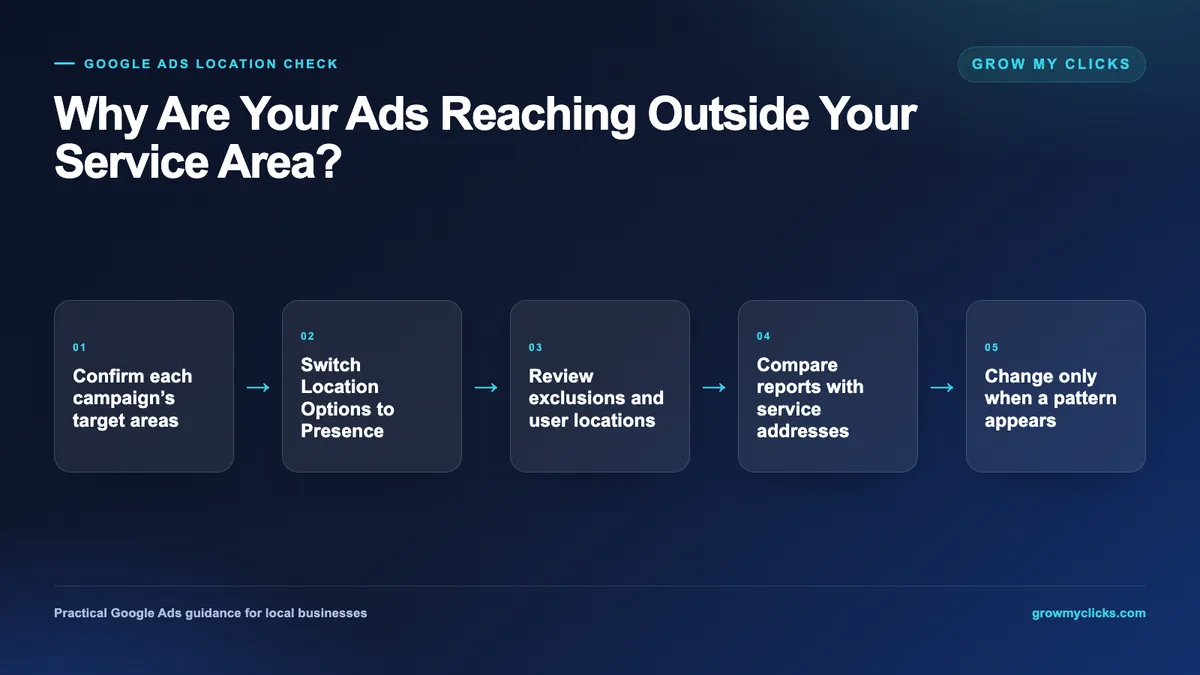
You chose your city, ZIP codes, or service radius in Google Ads. Yet you are still getting calls from people outside that area.
This does not always mean you set up the wrong location. Google Ads has two separate location choices:
- The locations you want to target
- The type of person who is allowed to see your ads
That second choice is easy to miss. It is also one of the most common reasons local ads appear outside the expected service area.
Here is how the setting works, what else can cause unwanted traffic, and how to check where your real customers are located.
The Location Setting Most Owners Miss
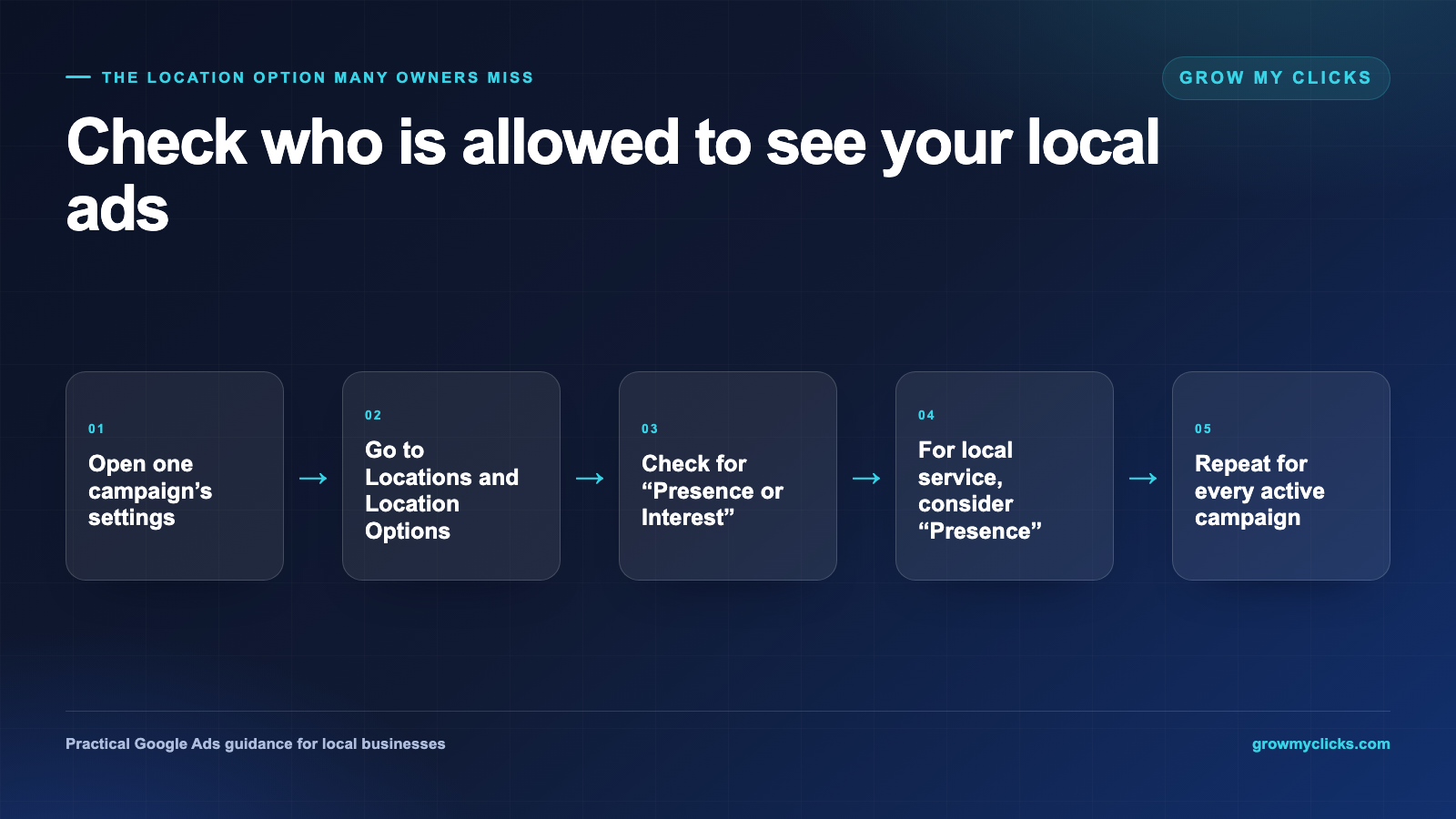
Choosing a target city tells Google which place matters to your campaign. It does not always mean that a person must be physically inside that city.
By default, Google Ads may reach people who are:
- In your selected location
- Regularly in that location
- Interested in that location
That last group can include people who are far outside your service area. Someone in another state might search for services in your city because they are moving, planning a visit, helping a family member, or researching local businesses. Under the default setting, that interest may make the person eligible to see your ad. Google explains this difference in its location-targeting guidance.
The setting is called “Presence or Interest.” For many local service businesses, a narrower option makes more sense:
“Presence: People in or regularly in your targeted locations.”
This change can reduce clicks from people who are only interested in your area but are not actually there.
You must check this option inside each campaign. Do not assume that changing one campaign updates the entire account. Copied campaigns and campaigns created at different times may use different settings. This beginner guide shows the campaign-level path through Settings, Locations, and Location Options.
Google may rename or move parts of its menus over time. If you do not see the exact wording, look for “Location Options” within the campaign settings.
Why “Presence” Is Not a Perfect Fence
Changing the option to Presence can improve your targeting, but it cannot guarantee that every click will come from your exact service area.
Google estimates a person’s location from several signals. These can include their internet connection, device location, Wi-Fi, GPS, nearby cell towers, searches, and past activity. Those signals are useful, but they are not always exact. Google describes location targeting as a best-effort estimate rather than a guaranteed boundary.
Google may also connect a target city with nearby suburbs or closely related areas. That means a person just outside the city line may still appear in your reports.
There are also normal situations that can make a good lead look like an out-of-area lead:
- A customer calls from work instead of from the service address.
- A homeowner is traveling when they request an estimate.
- A landlord lives in another state but owns property in your area.
- A customer regularly commutes into your target city.
- A person is physically nearby but needs service at another address.
- Google estimates the device location incorrectly.
Practitioners have reported isolated leads outside their selected areas even after reviewing their settings. The discussion often points to both Presence or Interest and imperfect location estimates as possible causes. This electrician-focused discussion provides one such example.
One unexpected click does not prove that the campaign is broken. A repeated pattern of costly clicks and poor leads deserves a closer look.
A Five-Minute Location Check
Use this simple order when reviewing your campaigns.
1. Check the included locations
Open each campaign and review the locations you selected.
Make sure every city, ZIP code, or radius belongs in your real service area. Remove locations that were added by mistake.
Choose boundaries that match how your business works. A plumber may use a driving radius. A licensed contractor may need county or state lines. Another company may prefer a list of ZIP codes.
There is no single perfect radius for every business. The right choice depends on your travel limits, job value, staffing, licensing, and local geography. This Google Ads location-targeting video description also notes that the radius should reflect the type of business.
2. Check Location Options
Inside the same campaign, find Location Options.
For a local service business, consider selecting:
“Presence: People in or regularly in your targeted locations.”
This removes people who qualify only because they showed interest in the area. A Reddit advertiser who received non-US traffic after selecting the United States traced the issue to this additional setting. That is one person’s experience, but it shows how easy the option is to overlook. Read the discussion here.
Repeat this check for every active campaign.
3. Review your exclusions
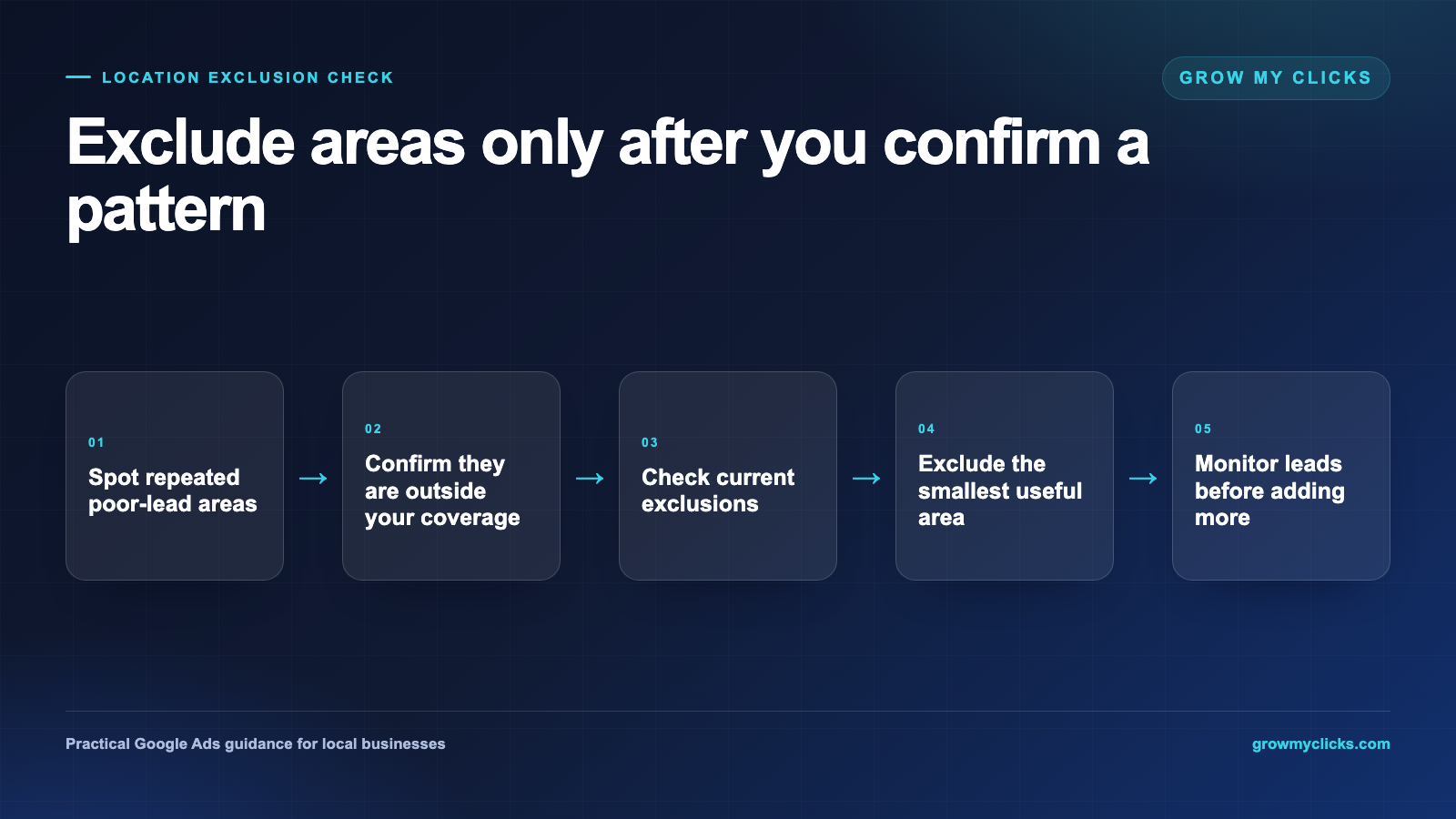
Look for excluded cities, ZIP codes, counties, or other areas.
Make sure you did not accidentally exclude a place you serve. You can also add exclusions for nearby areas that repeatedly generate poor leads.
Do not exclude an area because of one strange click. Look for a clear pattern first.
4. Review where Google thinks users were located
Open your location reporting and review recent activity by country, region, city, or the most detailed location available.
Be careful with the standard matched-location view. It can mix a person’s estimated physical location with a place they merely showed interest in. A custom report using user-location fields can provide a clearer view of where users were estimated to be. You can then filter by cost or completed actions to find places spending money without producing results. Search Engine Land explains this reporting distinction.
The article covers an older Google Ads interface, so today’s menu names may be different. The main lesson still applies: know whether your report shows physical location, location interest, or a mix of both.
5. Compare Google’s report with real service addresses
Google’s location report is only one side of the story. Your actual lead information matters more.
Ask every caller or form lead for the service address or ZIP code before giving a quote. Record that location beside the lead source.
Do not rely on the caller’s phone number. People keep mobile numbers after moving, use work phones, and call on behalf of someone else. The service address tells you whether the job is actually inside your coverage area.
Track Leads With a Simple Spreadsheet
You do not need expensive software to find the pattern.
Create a spreadsheet with these columns:
- Date
- Lead source
- Service city or ZIP code
- Inside or outside your service area
- Qualified or unqualified
- Booked or not booked
- Estimated job value
- Notes
A qualified lead is simply someone you can serve who appears to need the service you offer.
Review the sheet once a week. Compare it with your Google Ads location report.
For example, imagine that Google reports five calls from a nearby city. After checking the service addresses, you learn that three callers needed work inside your service area and two did not.
Blocking the entire nearby city could remove good leads. A better first step may be to watch the pattern, tighten your ad wording, or adjust a smaller area.
Judge locations by qualified leads and booked work, not calls alone. Ten calls may look successful until you learn that eight requested service outside your territory.
Make Your Ads Clearer
Your ad text can help discourage the wrong people before they click.
Mention the main service area in a natural way:
- Serving Newark and nearby Essex County communities
- In-home service across Nassau County
- Available for homeowners within 25 miles of Austin
Google recommends including the service-area name in the ad when it can help reduce irrelevant clicks from people searching for another location. See Google’s guidance on preventing clicks outside targeted areas.
Do not list every ZIP code in the ad. Use the place name that customers recognize, then make the full coverage area clear on your landing page.
Focus on Patterns, Not Perfection
No location setting can create a flawless digital border.
Your goal is to reduce wasted spending while keeping valuable leads. Start by confirming the included areas. Change Presence or Interest to Presence when appropriate. Review exclusions. Check user-location reports. Then compare those reports with the service addresses supplied by real callers and customers.
If out-of-area leads continue to consume a meaningful part of your budget, you will have enough information to make a careful change instead of guessing.
Want help reviewing your location settings and lead quality? Book a Grow My Clicks strategy call for a clear look at where your ad budget is going and what you can improve.